What You Need to Know About Salesforce Objects Connectors (Before You Hit a Wall)
A Salesforce Objects connector is the direct, enterprise-grade way to pull CRM data from Salesforce into an analytics model - giving you access to unlimited rows, custom objects, and full schema control through SOQL queries.
Here is a quick summary of what it does and how it compares to the report-based alternative:
| Salesforce Objects Connector | Salesforce Reports Connector | |
|---|---|---|
| Row limit | No hard limit | 2,000 rows (hard cap) |
| Data access | Direct sObject/SOQL queries | Pre-built Salesforce reports |
| Custom objects | Yes | Limited |
| Best for | Production, large datasets | Small, ad-hoc pulls |
| Main risk | API quota, relationship column slowdowns | Silent data truncation |
To connect an analytics dataset to Salesforce Objects, you need to:
- Enable API access on your Salesforce user profile
- Open your desktop analytics client and select Get Data -> Salesforce Objects
- Choose Production or your custom domain URL
- Sign in with your Salesforce credentials
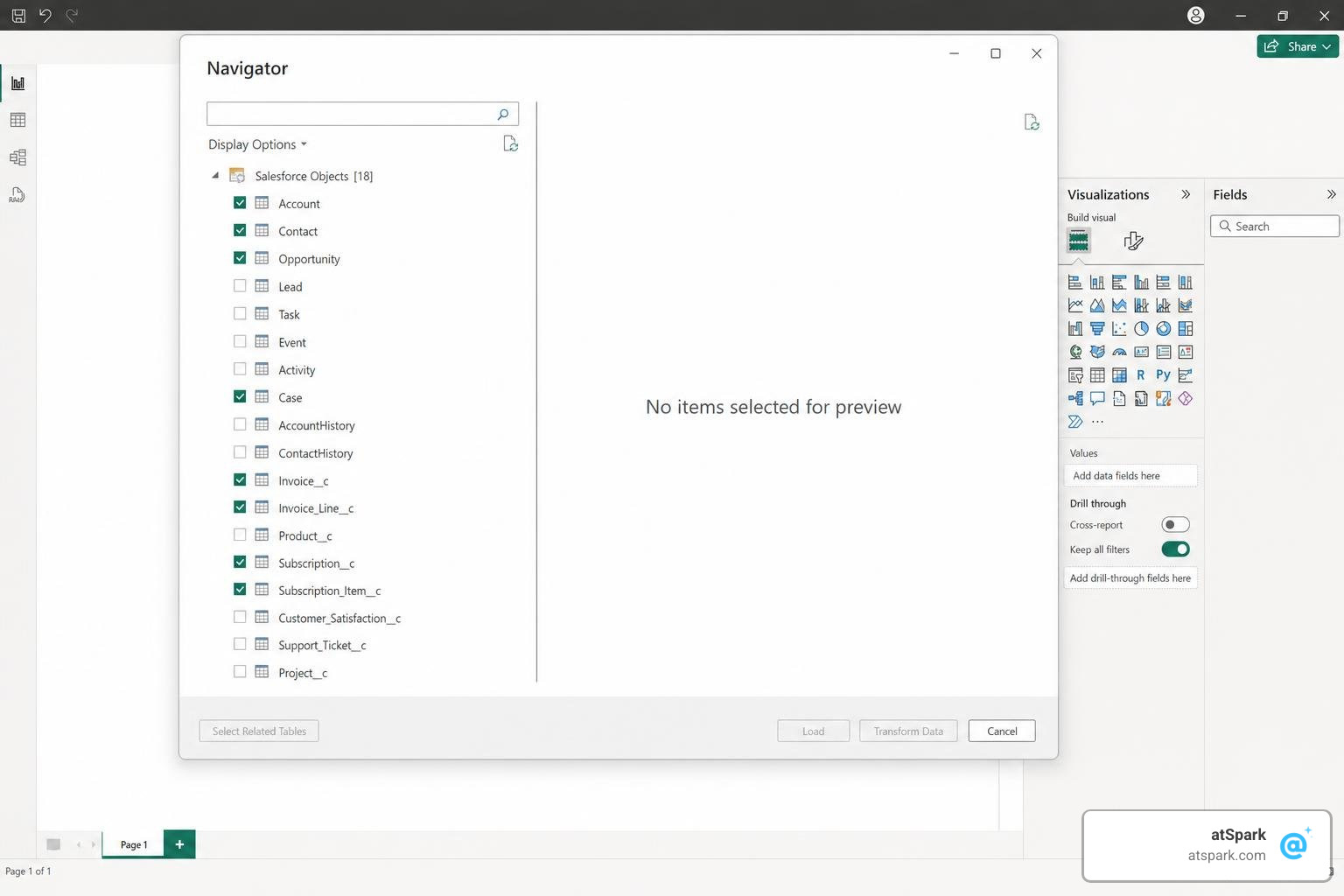
- Select the objects you want to load in the Navigator
Here is the problem most teams run into.
The report-based native connector silently cuts your data off at exactly 2,000 rows. No error. No warning. If your Opportunities table has 2,001 records, you get back 2,000 and the refresh can appear successful. That is a real analytical risk, especially for a RevOps or Finance lead making pipeline and retention decisions off that data.
The Salesforce Objects connector solves the row limit - but it comes with its own set of challenges. Relationship columns can balloon a 2-minute load into 15+ minutes. Concurrent queries can trigger cryptic INVALID_QUERY_LOCATOR errors. Wide objects with lots of custom fields can throw a 'query is too complicated' error before you even get any data.
This guide walks you through every step - from initial setup to production-grade optimization.
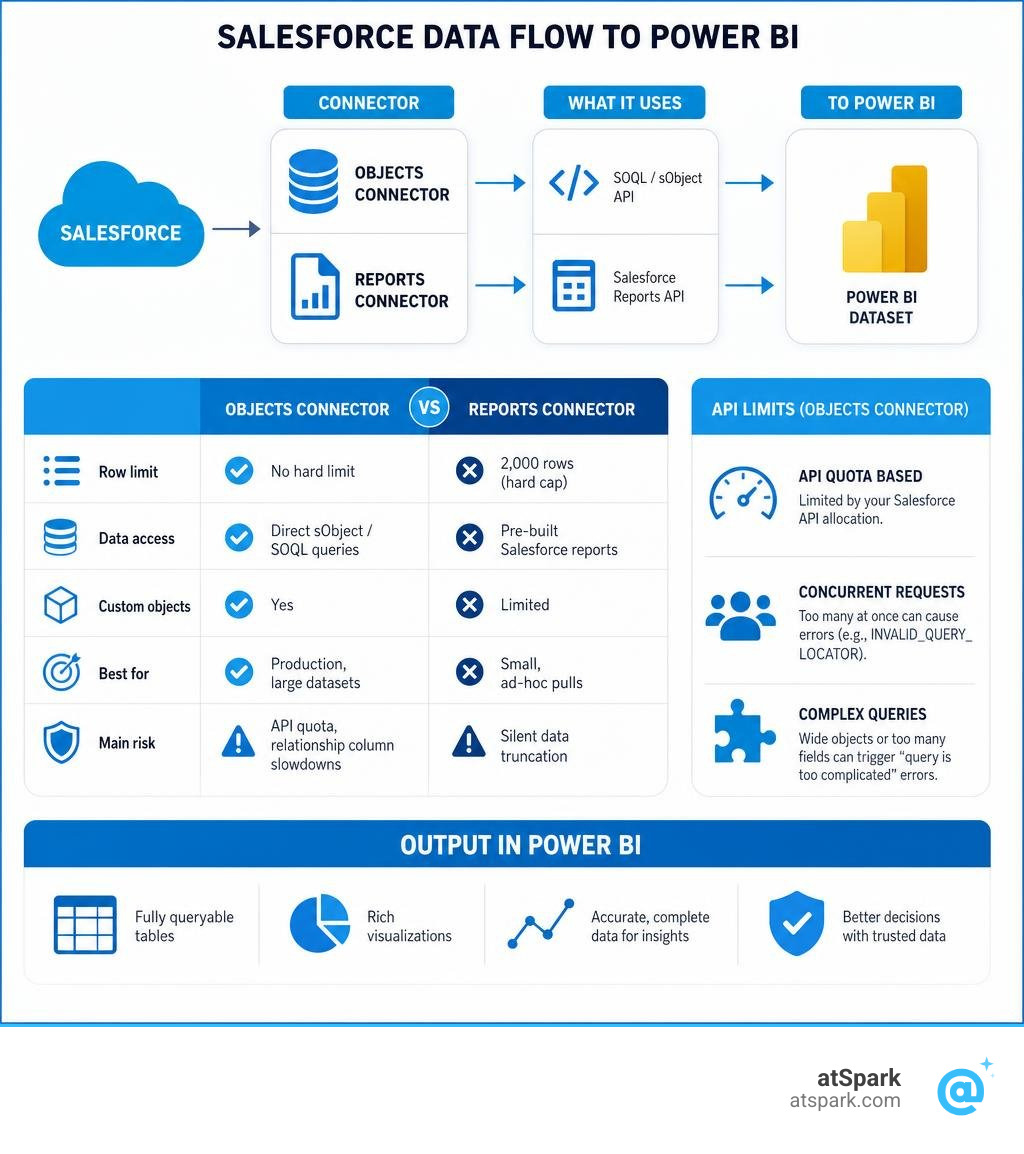
Salesforce Objects vs. Reports Connector in BI Workflows
When integrating Salesforce with an analytics environment, deciding which connector to use is your very first architectural crossroads. While both connector types may appear similar during setup, they rely on entirely different Salesforce APIs, leading to very different behaviors in production.
The Salesforce Reports connector pattern is designed for quick, ad-hoc analysis. It queries the Salesforce Analytics REST API to pull data that has already been aggregated, filtered, and formatted within a Salesforce Report.
In contrast, the Salesforce Objects connector pattern accesses the underlying transactional database directly. It bypasses the reporting layer, querying the sObject REST API or Bulk API 2.0 to retrieve raw tables. For teams looking to build robust, automated dashboards that scale, the Objects connector is the safer production choice.
For organizations that want to avoid dealing with these complex API limitations altogether, the atSpark Platform offers a conversational, fully governed alternative that unifies your CRM, billing, and subscription data without requiring complex data modeling or custom engineering.
Understanding the Salesforce Reports 2,000-Row Limit
The most dangerous aspect of the Salesforce Reports connector is its hard limit of 2,000 rows. This constraint is enforced directly by the Salesforce Analytics REST API.
When an analytics tool requests data from a Salesforce report that contains 50,000 rows, the API returns the first 2,000 records and stops. Crucially, it does not send an error code or warning. The refresh completes successfully, leaving you with a silently truncated dataset.
If your sales team relies on this data for monthly forecasting, your dashboards will show an artificially deflated pipeline. This silent truncation creates a compounding analytical risk that can lead to poor strategic decisions before anyone notices the data is incomplete.
Why the Salesforce Objects Connector is the Enterprise Standard
To build reliable enterprise dashboards in July 2026, the Salesforce Objects connector pattern is the industry baseline for direct CRM extraction. Because it queries the raw sObjects directly using Salesforce Object Query Language (SOQL), it has no inherent row limits. Whether you have 10,000 or 10 million records, the connector can pull them when it is configured correctly.
Furthermore, the Objects connector gives you direct access to custom objects, historical tracking tables, and complex relationship fields that are often difficult or impossible to expose cleanly in standard Salesforce reports. This direct access helps your semantic model remain the single source of truth, pulling real-time, untruncated CRM schemas directly into your analytics environment.
Step-by-Step: Connecting to Salesforce Objects
Setting up a robust connection requires configuring permissions on the Salesforce side before opening your analytics client. Let us walk through the essential configuration steps to ensure a smooth connection.
Prerequisites and API Access Configuration
Before attempting to connect, your Salesforce administrator must grant your integration account the proper permissions.
- API Enabled: The connecting Salesforce user profile must have the 'API Enabled' administrative permission checked. Without this, the connection will be blocked entirely.
- Trial Account Restrictions: If you are testing this integration using a Salesforce trial account, note that Salesforce disables API access by default on trial environments. You will need to request API activation from Salesforce support or use a Developer Edition sandbox.
- My Domain Enforcement: Salesforce enforces custom My Domain settings. If your organization uses a custom login URL, such as yourcompany.my.salesforce.com, standard login endpoints may fail with access forbidden errors. Ensure you have your custom domain URL handy.
Establishing the Connection in a Desktop Analytics Client
Once your permissions are configured, open your desktop analytics client and follow these steps to connect:
- Click Get Data and search for Salesforce.
- Select Salesforce Objects and click Connect.
- In the connection dialog, choose your environment. Select Production or Custom if your company uses a My Domain URL.
- Under the login prompt, enter your Salesforce credentials. If prompted, grant the connected app permission to access your Salesforce data.
- In the Navigator window, you will see a list of standard and custom objects. Select the tables you need, such as Account, Opportunity, or Contact, and click Transform Data to open the query editor.
Handling Custom Objects and Relationship Columns
In Salesforce, custom objects are easily identified by their API names, which always end with a double underscore and a c, such as Project_Milestone__c. Custom fields on standard objects use the same naming convention, such as Deal_Probability__c.
When you load these tables into a query editor, you will notice columns containing Record or Table values. These are relationship columns ending in __r for custom relationships. They allow you to traverse foreign keys, for example, pulling the Parent Account's Industry directly into an Opportunity query.
While convenient, expanding these columns carelessly can severely impact performance.
Resolving OAuth Token Expiry and IP Locking Issues
A frequent point of failure for scheduled refreshes in a cloud analytics service is Salesforce's strict session security settings.
If your Salesforce administrator has enabled the setting 'Lock sessions to the IP address from which they originated' under Session Settings, your cloud refreshes may fail. This happens because hosted refresh infrastructure can originate requests from different IP addresses than the one used during your initial authentication. To resolve this, ask your Salesforce admin to disable IP locking or add the service's trusted IP ranges to your Salesforce network settings.
Additionally, Salesforce limits the number of active OAuth refresh tokens to five per connected application per user. If you have more than five datasets refreshing under the same user account, older tokens can be revoked, resulting in sudden credentials invalid errors on your scheduled refreshes.
Fixing the 'Query is Too Complicated' and INVALIDQUERYLOCATOR Errors
As your Salesforce instance grows, you may encounter two common API errors:
- 'Query is either selecting too many fields or the filter conditions are too complicated': This occurs when you attempt to load a wide object, like Opportunity or Account, that contains hundreds of custom fields. Many query editors select all columns by default. To fix this, specify only the fields you actually need, or immediately remove unwanted columns in your first query step to support query folding.
INVALID_QUERY_LOCATOR: This error occurs when you exceed Salesforce's limit of 10 open query cursors per user account. If your semantic model attempts to pull from more than six large objects simultaneously, the concurrent requests can knock each other out.
Optimizing Performance and Managing API Limits
To transition your Salesforce integration from a desktop prototype to a reliable production asset, you must optimize how your analytics stack queries the Salesforce API. Failing to do so will result in slow report refreshes and exhausted daily API quotas.
The Cost of Relationship Columns in Salesforce Objects Queries
When using the Salesforce Objects connector pattern, many query editors automatically generate relationship columns for any foreign-key relationships detected in your Salesforce schema.
While it is tempting to click the expand button on these columns to pull in fields from related tables, doing so is expensive. Expanding a relationship column can force the query engine to generate complex nested SOQL queries.
For example, importing a standard Opportunity object with 150,000 rows might take 2 minutes. However, expanding just one relationship column, like Account, can increase that load time to over 15 minutes.
Best Practice: Instead of expanding relationship columns, import the related tables as separate queries, keep only the necessary fields, and build the relationships manually inside your analytics model.
Implementing Incremental Refresh with SystemModstamp
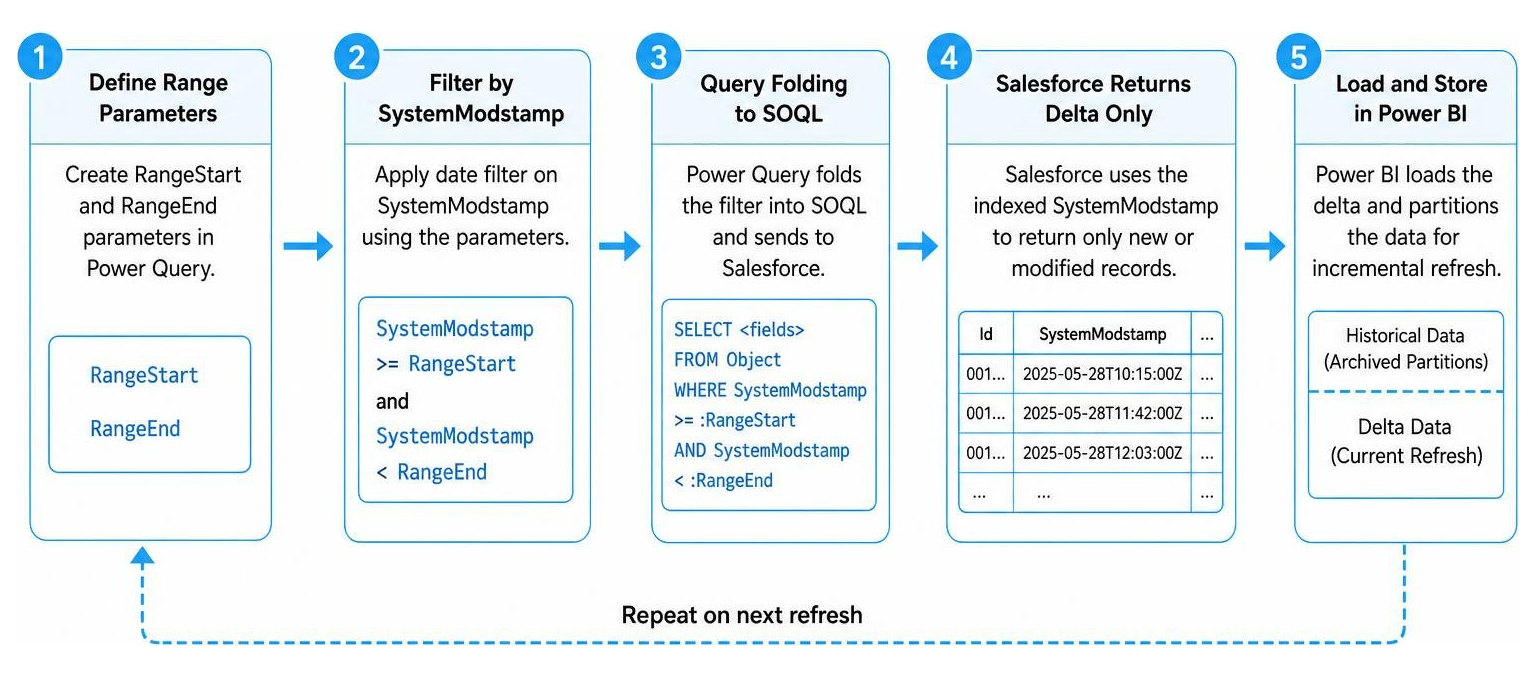
To prevent loading millions of historical Salesforce records during every daily refresh, you should implement incremental refresh. This ensures that only newly created or modified records are pulled.
When setting up incremental refresh, you must define the RangeStart and RangeEnd parameters. For the date filter column, always use SystemModstamp instead of LastModifiedDate or CreatedDate.
SystemModstamp is an indexed system field in Salesforce that updates automatically whenever any field on a record is modified. Because it is indexed, Salesforce can process the date-range filter quickly, allowing the query engine to fold the query and pull only the delta.
Managing API Quotas and Concurrent Query Cursors
Salesforce enforces strict API call limits based on your license type. For example, an Enterprise Edition license grants a base allocation of 100,000 API calls per 24-hour period, plus an additional 1,000 calls per user license.
A single inefficient refresh pattern can easily consume tens of thousands of API calls, blocking other business-critical integrations.
To manage your API consumption:
- Set up API usage notifications in Salesforce under Setup > System Overview at 50% and 80% thresholds.
- Schedule dataset refreshes during off-peak hours, such as late at night, to avoid concurrent request conflicts with active Salesforce users.
- Use a dedicated integration service account instead of an active sales representative's credentials to isolate and track API usage.
Advanced Architectures: Staging Data Before Reporting
If multiple reports in your organization require access to the same Salesforce objects, do not have each dataset query Salesforce directly. This duplicates API consumption and risks hitting your concurrent query limits.
Instead, build a centralized staging layer. Create a single governed extraction process that connects to Salesforce, extracts the required objects, such as Accounts and Opportunities, and stores them in a shared analytical storage layer. Your individual reports can then query the staged data locally. This architecture reduces your Salesforce API consumption to a single scheduled pull while providing faster load times for report developers.
Frequently Asked Questions about Salesforce Objects Connectors
Why is my Salesforce Reports connector truncating data at 2,000 rows?
This is a hard limit of the Salesforce Analytics API used by the Reports connector. The API does not support pagination for report exports, meaning it will always stop returning data at exactly 2,000 rows without throwing an error. To bypass this, use the Salesforce Objects connector pattern, which queries the database directly and has no inherent row limit.
How do I fix the INVALIDQUERYLOCATOR error?
This error is triggered when you exceed Salesforce's limit of 10 open query cursors per user account. This typically happens when too many tables refresh in parallel. You can resolve this by staging your data, reducing the number of objects in your dataset, or configuring refresh settings to load tables sequentially rather than concurrently.
Can I connect to Salesforce using a trial account?
No, Salesforce disables API access for standard trial accounts. To connect through the API, you must use a paid Salesforce edition that has API access enabled, use a Developer Edition environment, or request that Salesforce Support temporarily enable API access on your trial sandbox.
Conclusion
Mastering the Salesforce Objects connector pattern is essential for any data team looking to build reliable, scalable CRM dashboards. By understanding the underlying API behaviors, avoiding expensive relationship expansions, and using advanced performance techniques like incremental refresh, you can bypass the dreaded 2,000-row limit while keeping your Salesforce API usage well under control.
However, maintaining these data pipelines requires ongoing engineering effort, regular credential rotations, and constant monitoring for schema drift.
With atSpark, you can ask your data anything without SQL or complex engineering. atSpark connects directly to your SaaS tools, unifying your billing, CRM, and subscription data into a single, conversational interface. Your team can ask plain-English questions and get instant, accurate charts and insights - no API debugging required.